Associate Routing Rules with Travel Agent Profiles
Stay is enhanced to allow users to associate a routing rule template configured at the property with the travel agent profiles. The associated routing rule will be applied to all the reservations created using the profile.
Routing Rule Section
Users can select a routing rule template for a travel agent profile from the Routing Rule section. When users click Add, the Select Routing Rule pop-up screen appears. Users must select the routing rule template from the Routing Rule drop-down list. This drop-down list displays all the routing rules available at the property in the Active status.
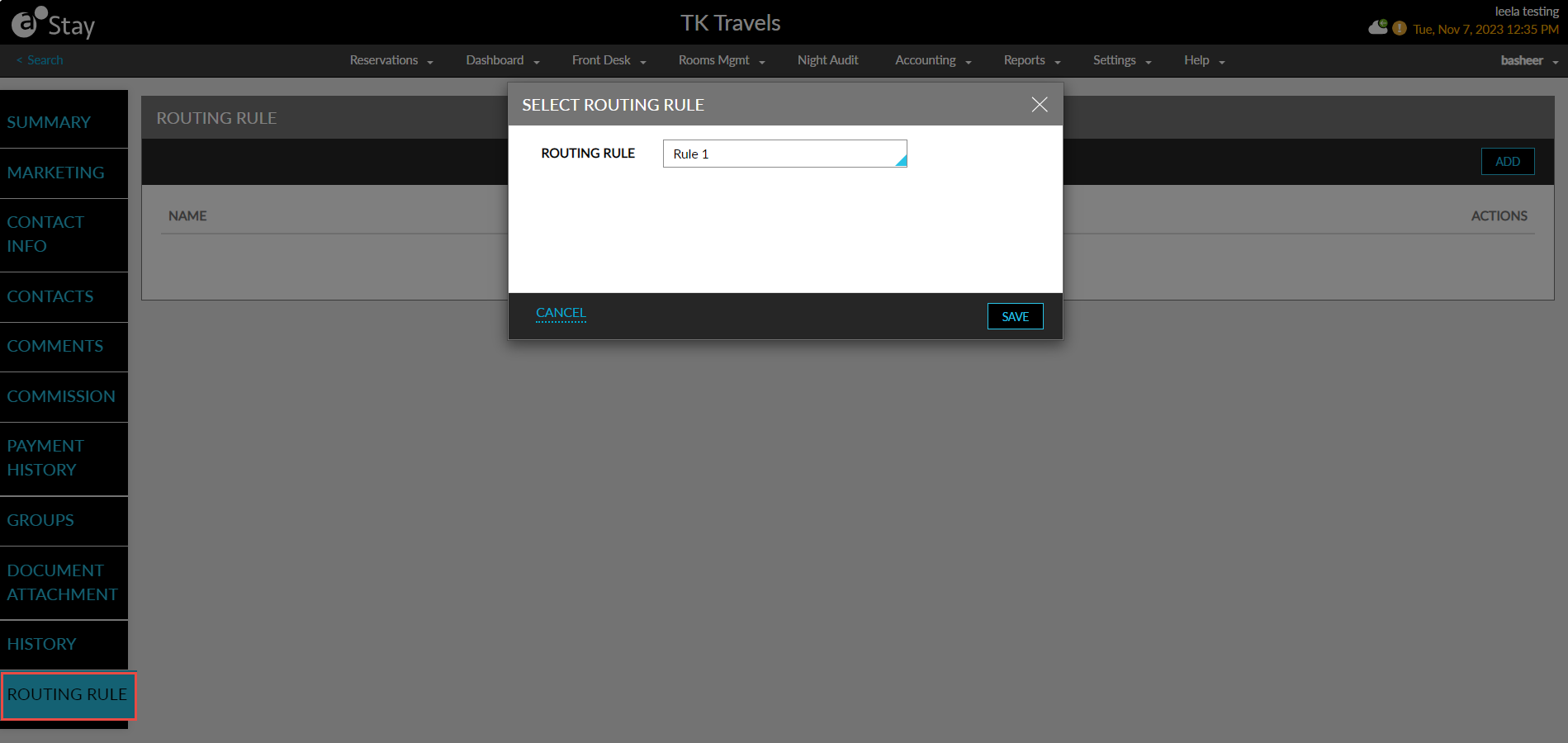
When users select the routing rule template and click Save, the routing rule will be added to the profile and displayed in the Routing Rule section.

The following columns are displayed in this section when a routing rule is associated:
|
Column |
Description |
|---|---|
|
Name |
The name of the routing rule. |
|
Destination |
The destination selected in the routing rule. |
|
Actions |
Users can remove the routing rule associated with the profile by clicking on the remove icon displayed in this column. |
When a routing rule is deleted from the profile, it will not be automatically removed from the existing reservations created using the profile.
System Changes
To support this enhancement, a new section, Routing Rule, has been added to the travel agent profiles.